
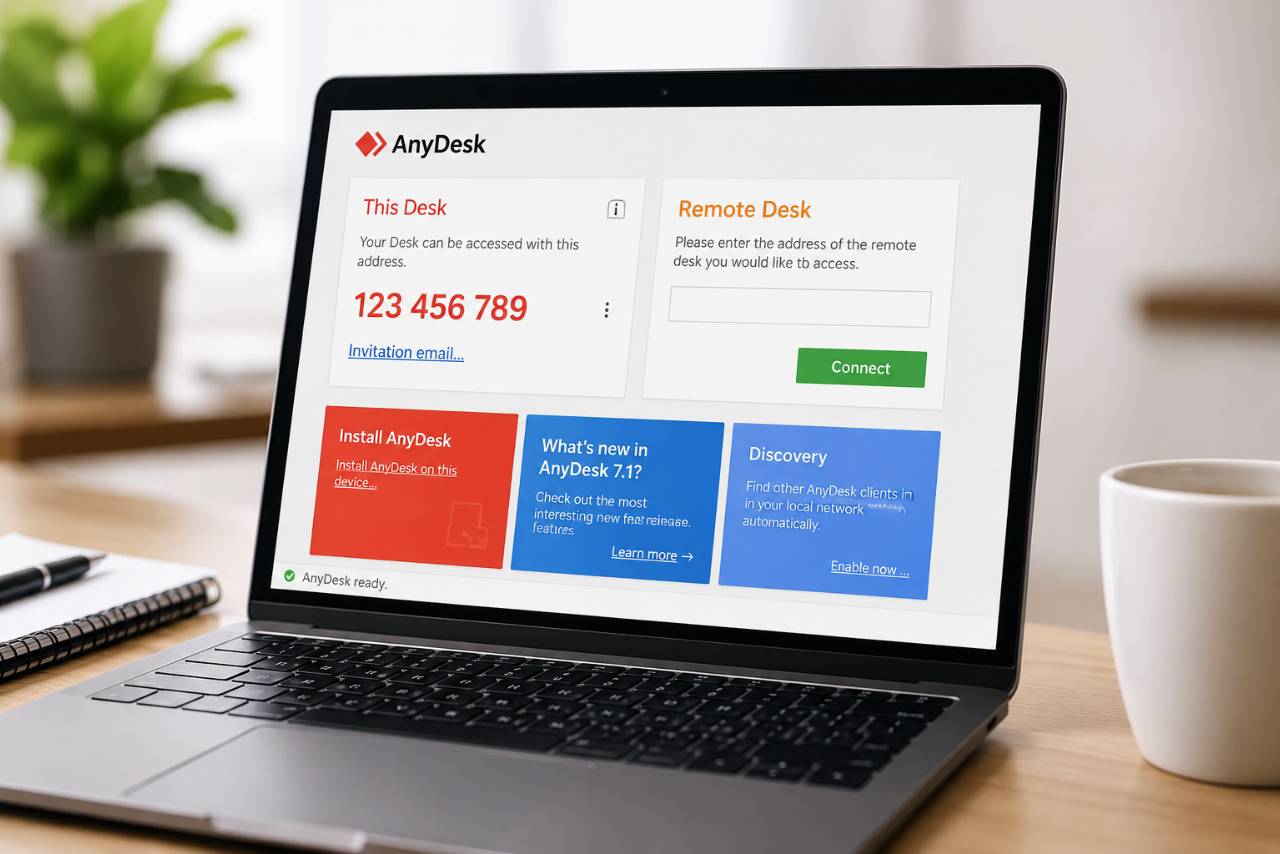
If you’ve requested support from Blue Digital, we may ask you to install AnyDesk so we can assist you remotely. Here’s how to get started.
Installing AnyDesk for Remote Support
Occasionally, the Blue Digital team may ask you to install AnyDesk so we can assist with tasks such as:
- Setting up your business email.
- Troubleshooting Outlook or other email applications.
- Providing remote support for email backups during a domain transfer.
Note: We will only ask you to use AnyDesk after you’ve requested support from our team.
QUICK ANSWERS
Download AnyDesk:
https://anydesk.com/en
How To Download AnyDesk
Step 1: Download AnyDesk
Visit the official AnyDesk website and download the latest version for your computer.
Download link: https://anydesk.com
Step 2: Install AnyDesk
Open the downloaded file and follow the on-screen prompts to complete the installation.
Once installed, launch AnyDesk.
Step 3: Share Your AnyDesk Address
When AnyDesk opens, you’ll see Your Address (sometimes called This Desk). This is a unique number or address that allows us to connect to your computer.
Send this address to the Blue Digital team in your WhatsApp support group.
Step 4: Accept the Connection Request
Once we’ve received your AnyDesk address, we’ll send a connection request.
You’ll be asked whether you want to allow the connection. Click Accept to begin the remote support session.
During the session, you’ll be able to watch everything we do, and you can end the session at any time by closing AnyDesk.
Once your issue has been resolved, simply close AnyDesk to end the session. You don’t need to uninstall AnyDesk unless you no longer wish to keep it on your computer.
Staying Safe
Your security is important to us.
- Blue Digital will never contact you unexpectedly asking for remote access to your computer.
- We will only request a remote support session after you’ve contacted us for assistance.
- Never allow remote access to anyone claiming to be from Microsoft, your bank, Xneelo, or another company unless you are certain they are legitimate.
- Never share passwords or banking information during a remote support session.
If you’re ever unsure whether a remote support request is genuine, contact the Blue Digital team through your WhatsApp support group before accepting the connection.
AnyDesk FAQ
What is AnyDesk?
AnyDesk is a fast, secure remote desktop application that enables users to access and control devices from anywhere.
It’s designed for both individual users and businesses, offering intuitive features like screen sharing, file transfer, session recording, access control, and more.
How do you grant Security Permissions on macOS?
To use AnyDesk on macOS, it is essential to grant the necessary system permissions. These permissions ensure that AnyDesk can access your screen, control input devices, and transfer files securely and efficiently.
Without these permissions, AnyDesk will not be able to receive incoming sessions or provide full functionality.
Required permissions
AnyDesk requires the following permissions from macOS:
- Screen Recording – allows remotes users to view the screen of macOS device.
- Accessibility – allows remote users to control mouse and keyboard of the macOS device.
- Full Disk Access – allows remote user to access files and folders on macOS device for File Transfer.