

How to Set Up Domain Email in Gmail
Set up domain email in Gmail to manage your professional email address from one familiar inbox.
This step-by-step guide explains how to add your domain email to Gmail using POP and SMTP settings securely.
Google Ends Gmailify and POP3 Support in 2026 for Better Security
Google plans to end Gmailify and POP3 email fetching in January 2026, citing security concerns tied to legacy protocols. The move forces users who rely on multiple account aggregation to switch to IMAP or forwarding, disrupting existing setups and further nudging users into Google’s ecosystem. Competing solutions such as Microsoft 365 and Thunderbird remain strong alternatives.
Step-by-Step Guide to Set Up Domain Email in Gmail
Setting up your domain email in Gmail comes with several advantages:
-
A clean, familiar, and user-friendly interface
-
Powerful spam filtering and security features
-
Easy access across desktop, mobile, and tablet devices
-
Large storage capacity for emails and attachments
-
Seamless integration with Google services like Calendar and Drive
Using Gmail with your custom domain email combines professional branding with Google’s trusted email platform.
Add Your Domain Email to Gmail (POP Settings)
Step 1
Log in to your Gmail account using your existing Google email address. This is the Gmail inbox where your domain email will be added.
Step 2
In the top-right corner of Gmail, click the Settings icon, then select See all settings from the dropdown menu.
Step 3
Navigate to the Accounts and Import tab. This section allows you to add and manage external email addresses within Gmail.

When you set up domain email in Gmail, you are connecting your hosting mail server to Google’s interface using secure POP and SMTP settings.
Step 4
Under Check mail from other accounts, click Add a mail account. A new window will open where you can enter your domain email address.

Step 5
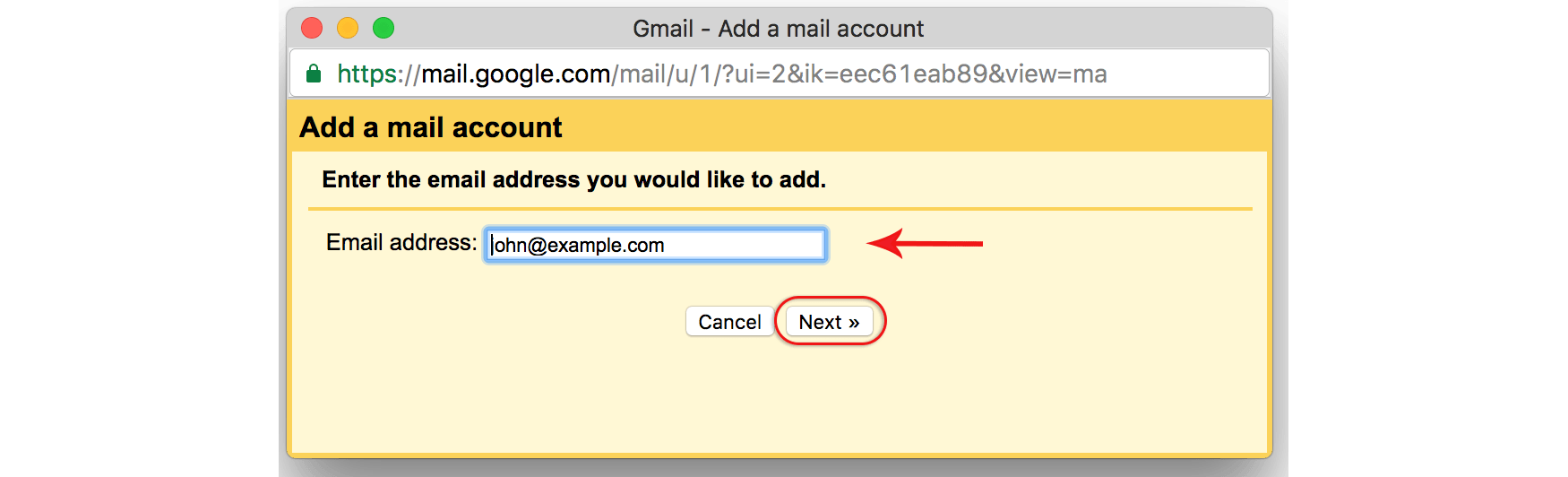
Enter your Email address, select Next
Step 6
Select the second option and select Next

Step 7
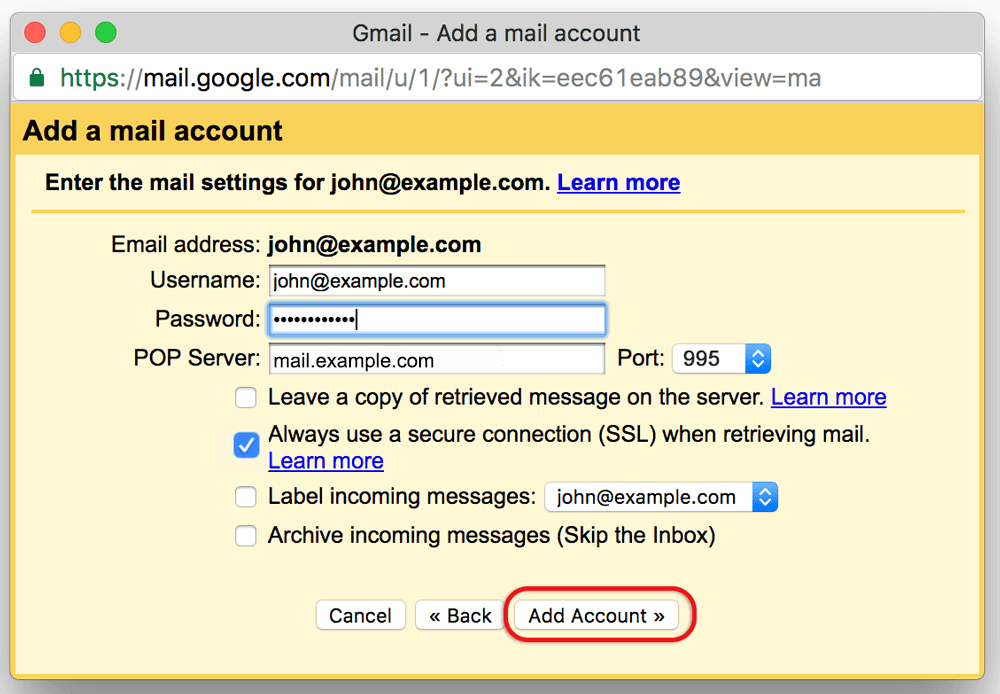
Gmail will automatically add certain settings, but check that:
-
- The Username is the full email address
- The Password is included
- The POP Server has mail. in front of the domain name e.g. mail.example.com*
- Port is 995
- Always use a secure connection (SSL) is checked
Step 8
Select Add Account
Send Mail From Gmail Using Your Domain (SMTP)
Step 9
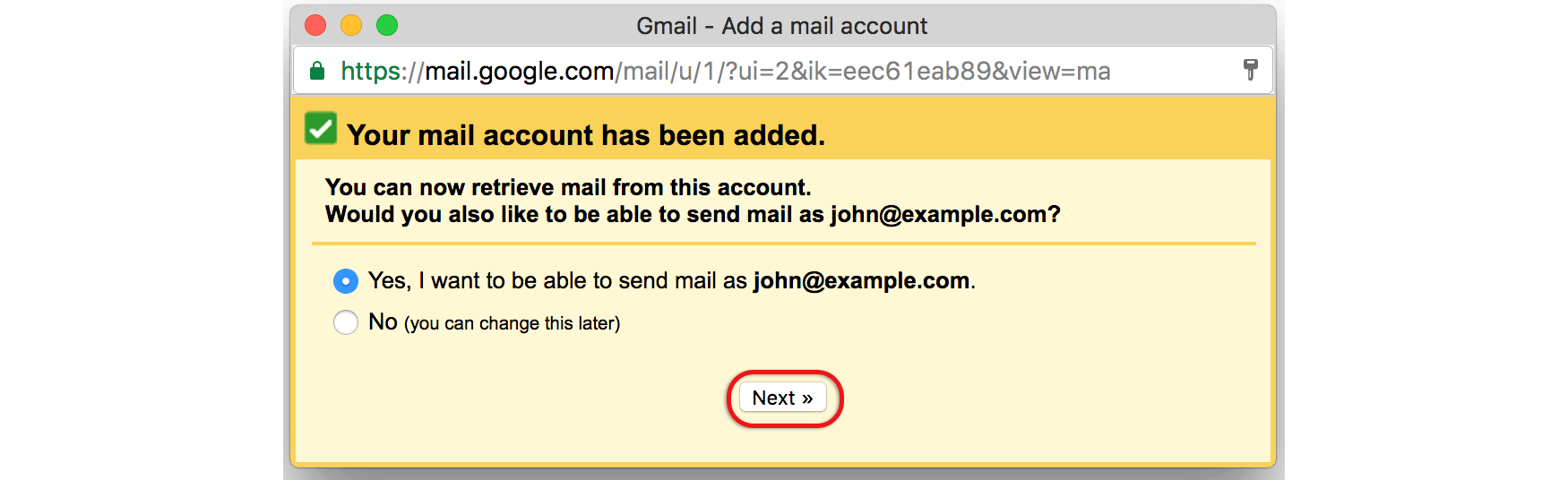
Your account has now been set up to receive your domain email, but you can now continue to set up the account to send mail from your domain. Select Yes and Next
Step 10
Untick Treat as an alias
Step 11
Select Next Step
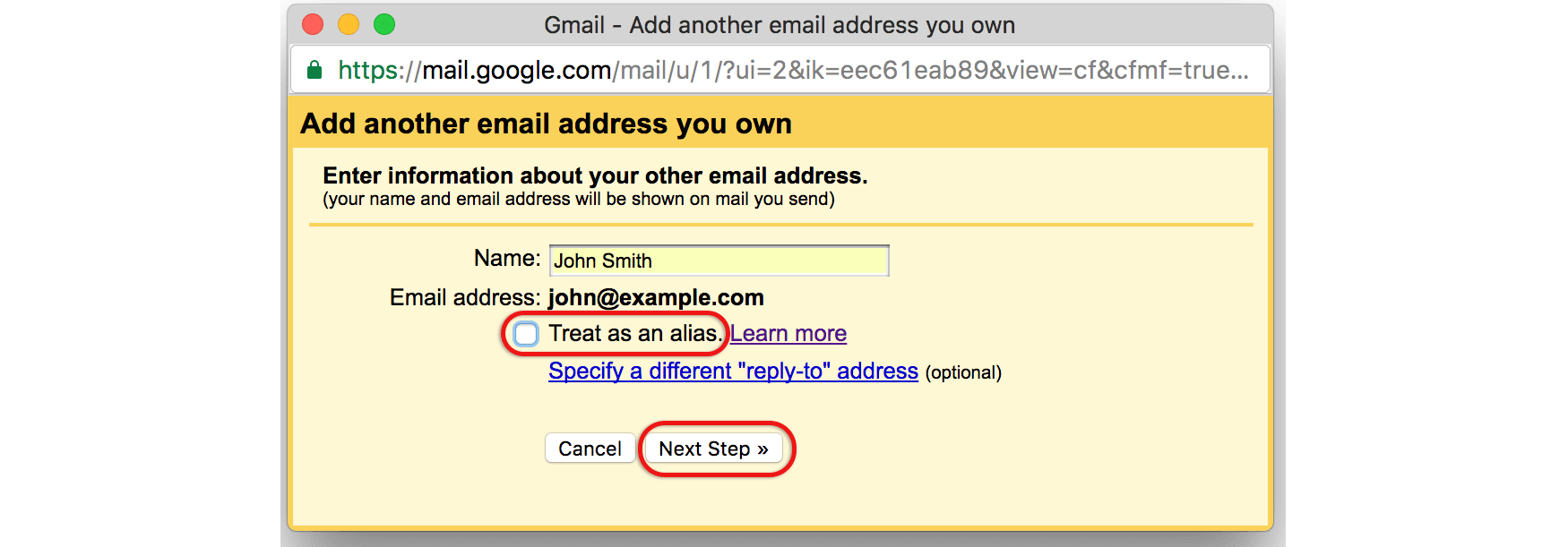
Step 12
Send mail through your SMTP server? Select the second option. The default setting is to send mail using Gmail SMTP servers, and while this will work, it is not recommended. The reasons are that Gmail servers are more likely to be blacklisted for spam abuse, and certain mail servers will not receive mail from domains that are not associated with that particular server.
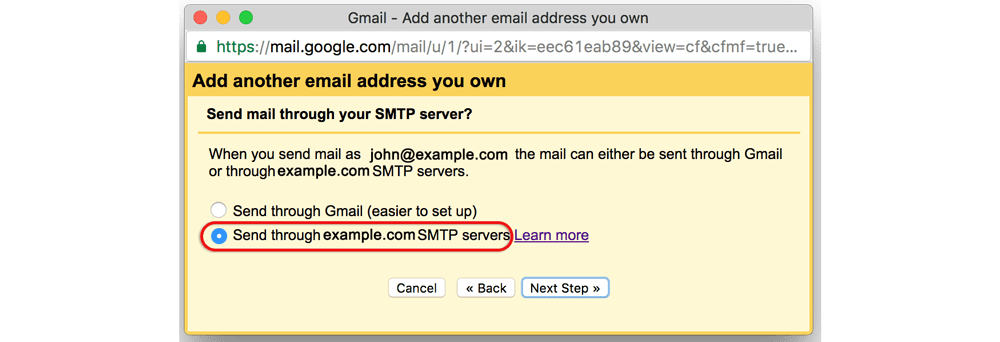
Correct SMTP settings are essential to successfully set up domain email in Gmail and ensure outgoing messages are delivered without spam issues.
Step 13
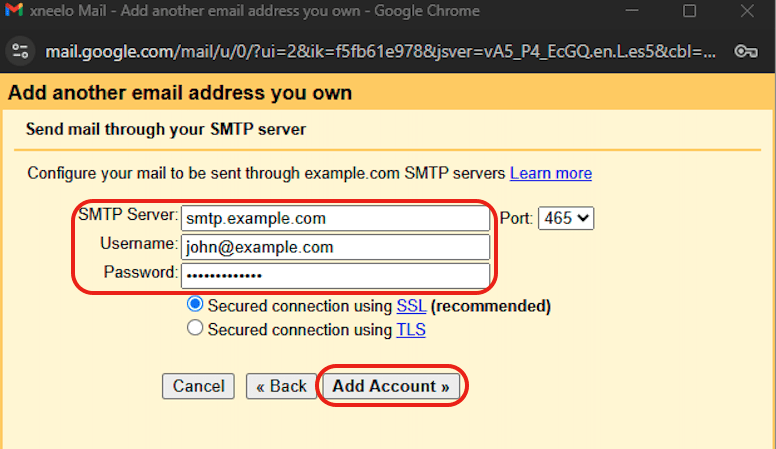
The current dialogue box opens up to add the SMTP details. Ensure that:
-
- The SMTP Server has smtp. in front of the domain name e.g. smtp.example.com*
- The Username is the full email address
- The Password is included
Step 14
Select Add Account
Step 15
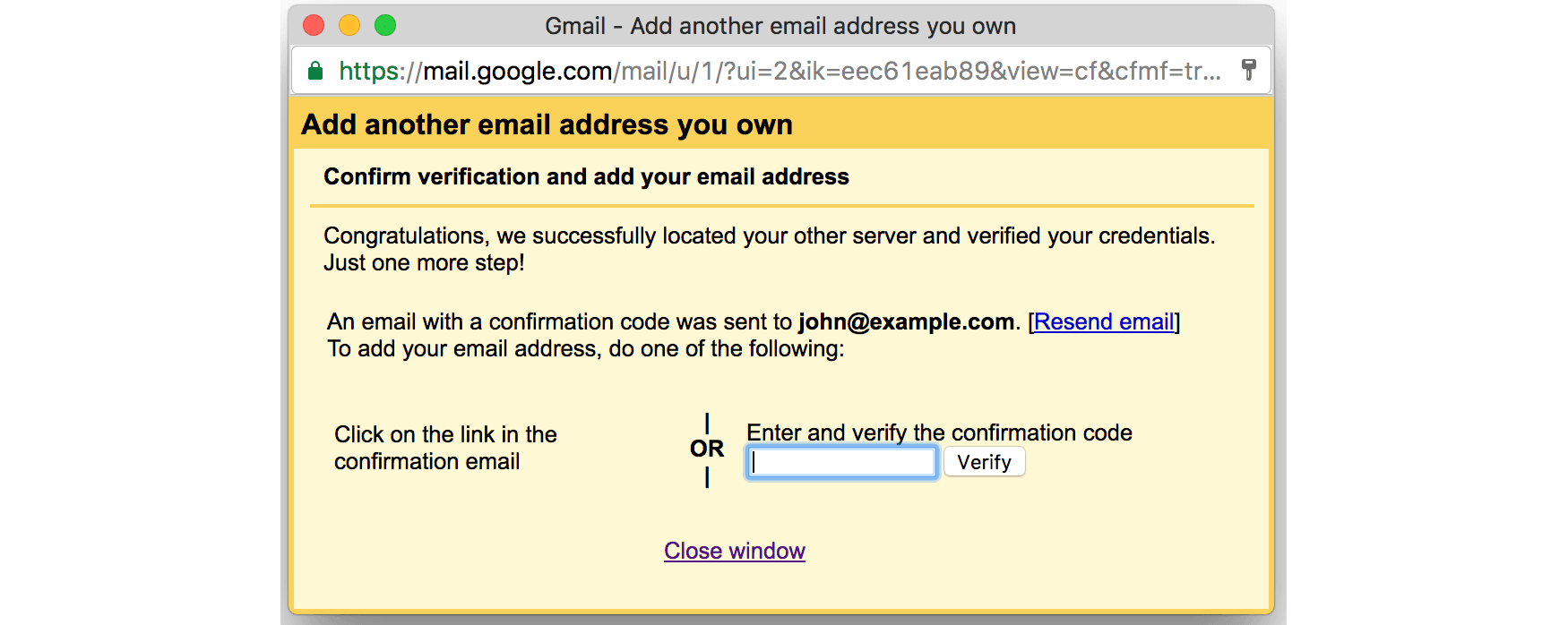
Gmail will check credentials, and then provide the following dialogue box:
Step 16
Open your mail and click the link on the confirmation email
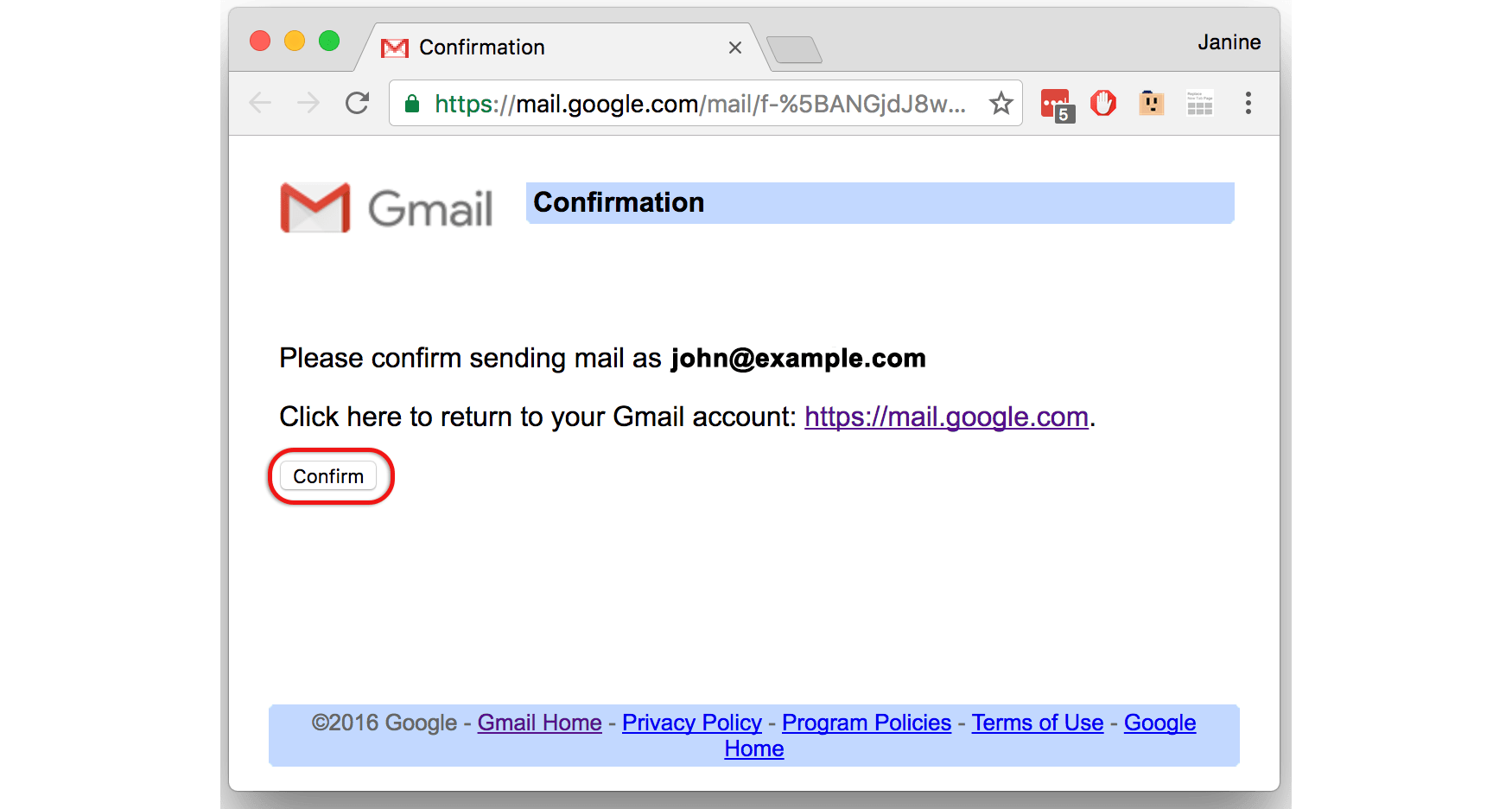
Step 17
Note: In isolated cases mail.domain (e.g. mail.example.com) and smtp.domain won’t work. In these cases you will need to use the server name instead e.g. www34.cpt1.host-h.net. Once you set up domain email in Gmail, you can manage professional email communication with Google’s powerful tools and security.
Confirmation success! Your domain mail is now set up to be accessed via Gmail.
FAQ
Can I use my domain email in Gmail?
Yes, you can use your domain email in Gmail by adding it as an external account using POP and SMTP settings.
Does Gmail support custom domain emails?
Gmail supports custom domain emails through POP and SMTP, allowing you to send and receive mail from your domain inside Gmail.
What settings are needed to set up domain email in Gmail?
You need your POP server (mail.domain.com), SMTP server (smtp.domain.com), email username, password, and SSL enabled.
Is it safe to use Gmail with a domain email?
Yes, Gmail offers strong spam filtering, SSL encryption, and advanced security features when connected to a domain email account.
Google provides official documentation on how external email accounts work in Gmail, which you can review for additional technical details.